What Does Pinning a Post on Facebook Do?
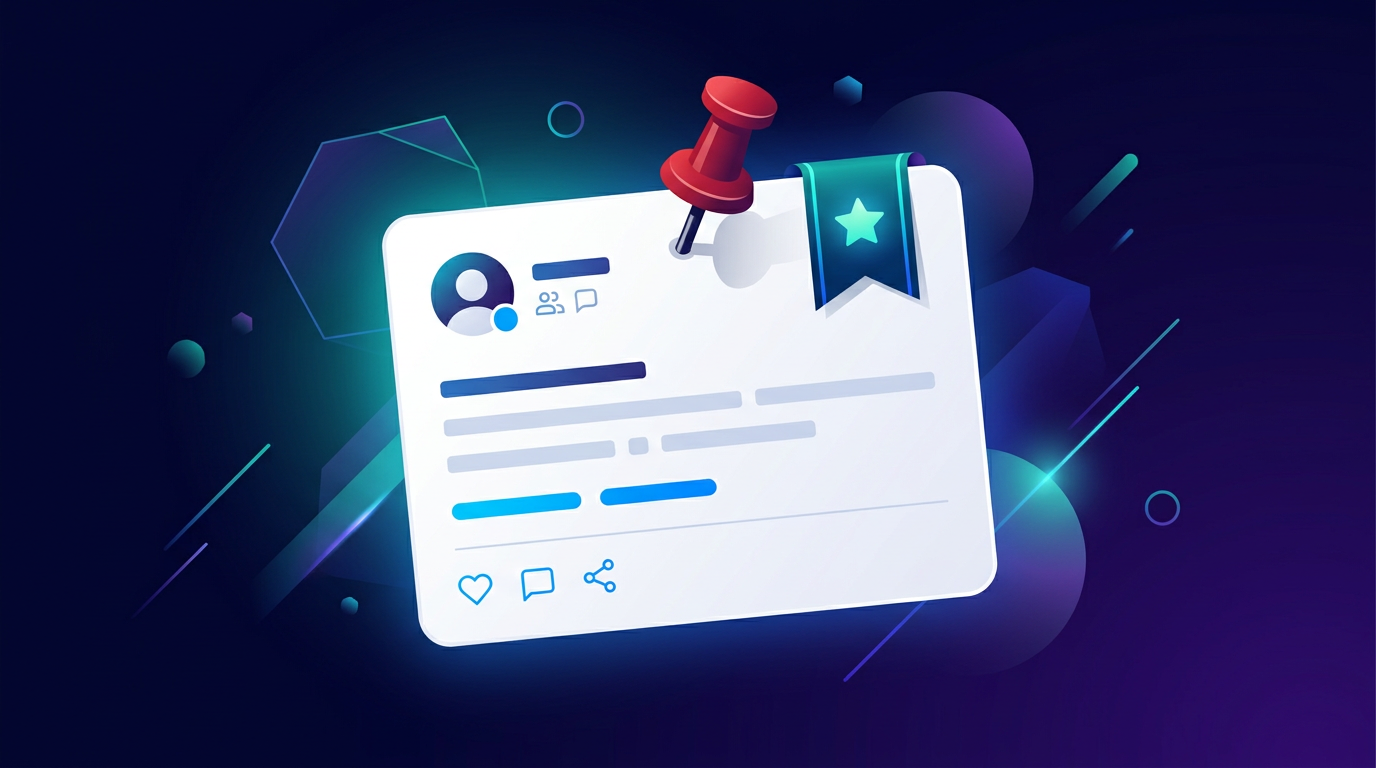
A pinned post stays at the top of your profile, Page, or Group regardless of when it was published. New posts appear below it. The pinned post has a small pin icon to indicate it's pinned.
Use a pinned post for:
- Important announcements
- Ongoing promotions or discounts
- Welcome messages for new visitors
- Links to your most important content (website, product, course)
- Contest or giveaway rules
You can pin one post at a time. Pinning a new post automatically unpins the previous one.
How to Pin a Post on Your Facebook Profile
On mobile:
- Go to your profile
- Find the post you want to pin
- Tap the three dots (...) in the top right corner of the post
- Tap Pin to your profile
The post moves to the top of your profile with a pin icon.
On desktop:
- Go to your profile
- Find the post
- Click the three dots (...) → Pin to your profile
How to Pin a Post on a Facebook Page
On mobile:
- Go to your Facebook Page
- Find the post you want to pin
- Tap the three dots (...)
- Tap Pin to top of Page
On desktop:
- Go to your Page
- Find the post
- Click ...
- Click Pin to top of Page
The post will now appear first whenever someone visits your Page, regardless of when it was published.
How to Pin a Post in a Facebook Group
Group admins and moderators can pin posts to appear at the top of the group feed.
On mobile:
- Open the group
- Find the post you want to pin
- Tap the three dots (...)
- Tap Pin post
On desktop:
- Open the group
- Click ... on the post
- Click Pin post
Note: Only group admins and moderators can pin posts. Regular members do not have this option.
How to Unpin a Post on Facebook
To unpin a post from your profile, Page, or Group:
On mobile:
- Find the pinned post (it's at the top with a pin icon)
- Tap the three dots (...)
- Tap Unpin from profile / Unpin from Page / Unpin post
On desktop:
- Click ... on the pinned post
- Click Unpin
After unpinning, the post stays on your profile/Page/Group in its original chronological position — it's not deleted.
How to Change a Pinned Post
Facebook only allows one pinned post per profile, Page, or Group at a time.
To replace your pinned post:
- Pin the new post using the steps above
- Facebook automatically unpins the current pinned post
- The old post remains on your timeline in its original position
Can You Schedule a Pinned Post?
Facebook doesn't currently support scheduling a post and setting it to auto-pin at publish time. The workflow is:
- Schedule the post with your preferred tool
- After it publishes, manually go to the post and pin it
If you schedule your Facebook content with PostLink, you can plan your posting calendar in advance and then pin the relevant post once it goes live.
Summary
Pinning on Facebook:
| Location | Who can pin | Max pinned posts |
|---|---|---|
| Personal profile | You | 1 |
| Facebook Page | Page admin | 1 |
| Facebook Group | Admin/Moderator | 1 |
To pin: three dots on the post → Pin to [profile/Page/top] To unpin: three dots on the pinned post → Unpin
Pinned posts are one of the simplest tools for directing visitors' attention to your most important content — and they cost nothing.